
How to translate a PowerPoint presentation, pictures included
PowerPoint has a built-in Translator, but it translates the text you select and replaces that selection with the translation; it does not translate a whole file. For a full deck you need a document translator, and for a live talk PowerPoint can show translated subtitles of what you say. In every case, words inside pictures stay as they are, so the last part of this guide covers screenshots, spec sheets and diagrams.
In short
- A few text boxes: select the text, then Review → Translate → Insert.
- A whole deck: a document translator, for example Google Translate's Documents tab (.pptx up to 10 MB) or DeepL. Check privacy and layout.
- Pictures with text: Save as Picture, translate the image, then Change Picture. Charts built in PowerPoint are data, not pictures: edit their data and titles instead.
Which tool for which job
| Job | Tool | Scope | Main limit |
|---|---|---|---|
| Fix or translate a few strings | Review → Translate | Selected text | One selection at a time |
| Translate the whole deck at no cost | Google Translate, Documents tab | The .pptx file | 10 MB, text in images not translated |
| Translate the whole deck with another engine | DeepL or an add-in | The .pptx file | Plan limits, where the file is processed |
| Present to people who speak another language | Live subtitles | What you say | The slides stay untranslated |
| Pictures that contain text | An image translator | Pictures saved from the deck | Generated output to review |
The built-in Translator: Review → Translate
Microsoft's steps for PowerPoint: highlight the text you want to translate, select Review → Translate, choose your language to see the translation, then select Insert (Microsoft Support). On a Mac, Microsoft's steps add Translate Selection after Review → Translate. The feature is listed for Microsoft 365 subscribers, Office 2021 and Office 2024 for Mac. It requires an internet connection and Office connected experiences, which means the selected text is sent to Microsoft's translation service (Microsoft Learn).
Word has a command that translates a full document; PowerPoint's Translator works selection by selection. On a 30-slide deck that is a lot of clicks, so the Translator is most useful for finishing touches: retranslating a title that came out wrong, or a text box a file translator missed.
Translate the whole .pptx file
Google Translate (free)
On a computer, open Google Translate, choose the Documents tab, pick the languages, click Browse your computer, select the .pptx file, click Translate and then Download translation. Files can be up to 10 MB, and Google states that text in images appears in the output but is not translated (Google Translate Help). Decks with many photos can exceed 10 MB: reduce picture sizes first (Microsoft: reduce the file size of a picture) or split the deck.
DeepL and other document translators
DeepL's document translation page lists PowerPoint slides among the file types it translates (DeepL). With a DeepL account but no subscription, a .pptx can be up to 5 MB and 100,000 characters, and the translated file is not editable (DeepL file formats). DeepL's help center also states that images inside a PPTX file are not translated (DeepL); more in DeepL compared with an image translator.
The rest of the "ppt translator" results are online tools, Microsoft marketplace add-ins and scripts. Before you upload a confidential deck to any of them, check:
- where the file is processed and how long it is kept;
- whether speaker notes, tables, charts and SmartArt are translated;
- whether the free tier adds a watermark or caps pages;
- whether you can download an editable .pptx, not only a PDF.
Microsoft 365 Copilot
If you use Copilot in PowerPoint, check Microsoft's current documentation, or ask your IT team, whether it can translate a presentation in your version. Microsoft's dedicated help article on translating a presentation with Copilot redirected to its "Edit with Copilot in PowerPoint" page, which does not mention translation, when we checked on October 4, 2026, so we do not describe steps here.
Presenting live: translated subtitles
PowerPoint can transcribe what you say and show it as subtitles in another language. On the Slide Show tab, select Subtitle Settings, set the Spoken Language (what you say) and a different Subtitle Language (what the audience reads); when they differ, translation occurs. Subtitles are off by default: turn them on with Toggle Subtitles during the show, or with Always Use Subtitles on the Slide Show tab. Microsoft lists more than 60 display languages and support on Windows, Mac and the web, recommends a headset microphone, and says the feature requires a reliable internet connection (Microsoft Support).
Subtitles help during a talk or a Q&A. They do not change the file: if people will read the slides afterwards, the slides still need translating.
Pictures: Save as Picture, translate, Change Picture
The Translator works on text you can select, and Google's file translator leaves text in images untranslated. So a screenshot, a scanned page or a chart pasted as an image keeps its original words. First, sort what is on the slide:
| Object on the slide | What it is | How to translate it |
|---|---|---|
| Text box, table, SmartArt | Text | The methods above, then check each object in the result |
| Chart built in PowerPoint or embedded from Excel | Data | Select it, Chart Design → Edit Data (or Edit Data in Excel) and translate series and category names (Microsoft); edit chart and axis titles on the chart (Microsoft) |
| Screenshot, photo, scanned page, chart or diagram pasted as an image | Picture | The workflow below |
The workflow for pictures:
- Save the picture. Right-click it (Control-click on a Mac), choose Save as Picture, pick PNG in Save as type and click Save (Microsoft Support). For a deck with dozens of pictures, on Windows, make a copy of the .pptx and rename it to .zip: the pictures sit in the ppt folder, in the media subfolder (Microsoft Support, which says this method does not work on macOS).
- Translate it. Upload the file to the image translator (JPG, PNG or WebP, up to 10 MB) and choose the target language. In the Business type menu, pick Technical documentation for spec sheets and diagrams and Default mode for screenshots; see also charts pasted as pictures. The menu is shown on wide screens; on a smaller one, signed-in users can save a default business type in their profile. From the Pro plan, batch translation takes up to 10 images per run.
- Swap it in. Select the original picture, open the Picture Format (or Format) tab, select Change Picture and choose where the new file comes from (Microsoft Support). Check that it is not stretched: the translated image can have different pixel dimensions.
- Update the alt text. Right-click the picture and open the Alt Text pane (labeled View Alt Text or Edit Alt Text depending on the version), or use Picture Format → Alt Text (Microsoft Support).
What a translated slide picture looks like, and what to catch
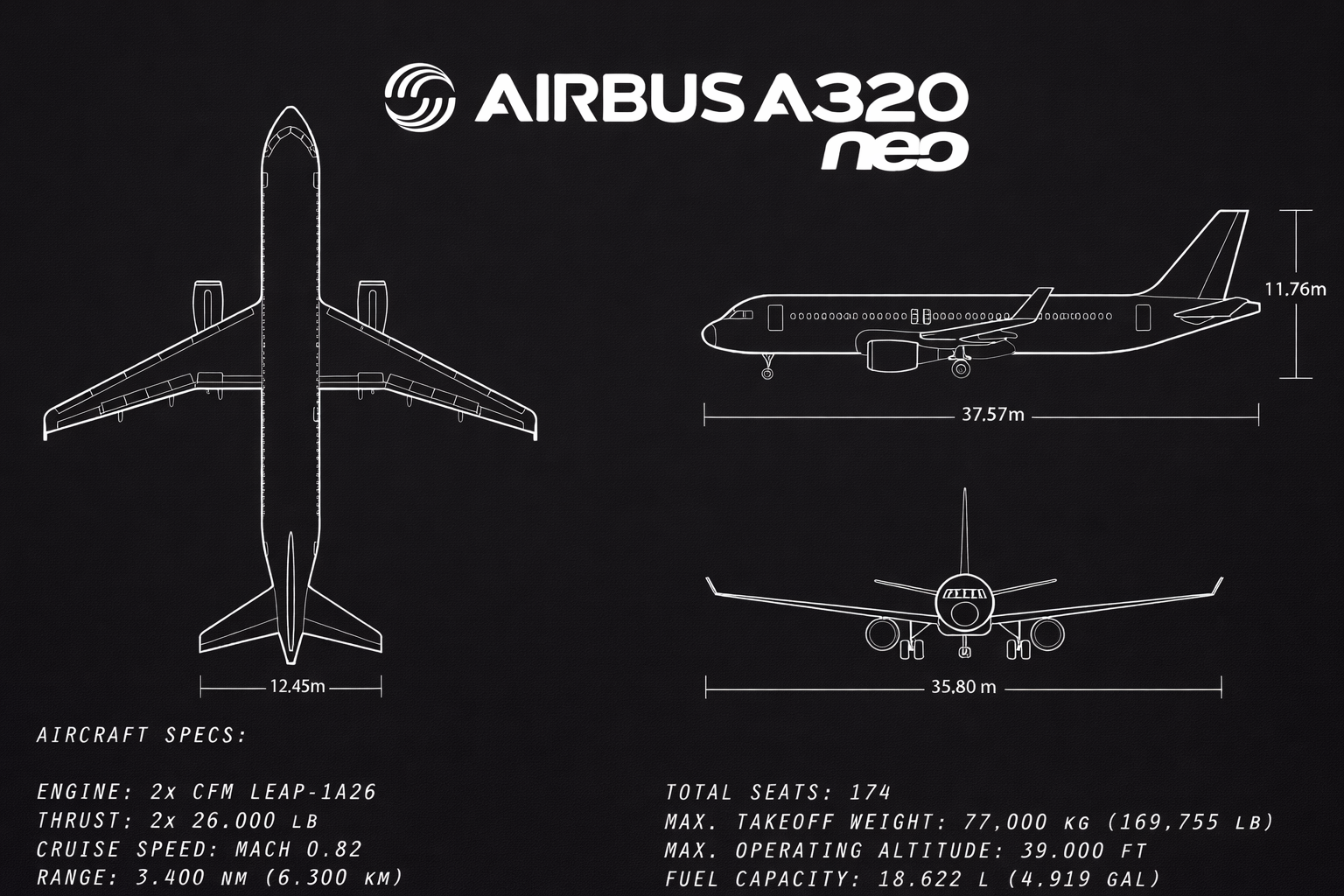
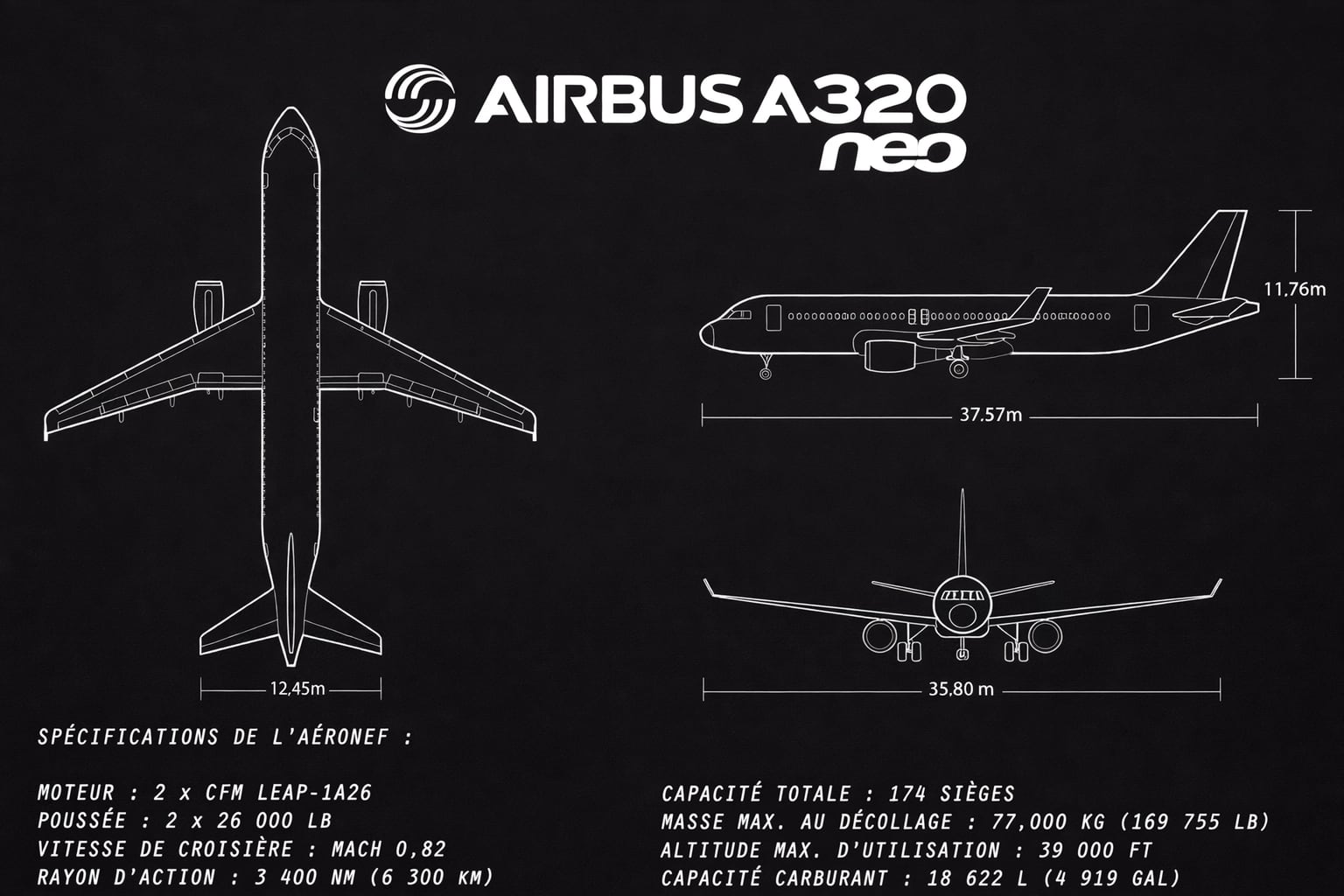
This aircraft spec sheet is one of the samples shown on our site, followed by the French version our image translator generated from it.
What came through correctly:
- The specification labels are in French: "AIRCRAFT SPECS" became "SPÉCIFICATIONS DE L'AÉRONEF", "MAX. TAKEOFF WEIGHT" became "MASSE MAX. AU DÉCOLLAGE", "RANGE" became "RAYON D'ACTION".
- The line drawings, the values on the four dimension lines and the "AIRBUS A320 neo" title are unchanged.
- Most numbers follow French style: "39.000 FT" became "39 000 FT", "18.622 L (4,919 GAL)" became "18 622 L (4 919 GAL)" and "MACH 0.82" became "MACH 0,82".
What a reviewer must catch before using it in a deck:
- "77,000 KG" kept its comma, right next to "169 755 LB". In French a comma marks decimals, so the weight reads as 77 kg: it must become "77 000 KG".
- This French file has the same pixel dimensions as the original, but a translated image can come back at a different size. After Change Picture, check that the picture is not distorted.
Checklist after translating a PowerPoint
- AutoFit, box by box. In PowerPoint for Windows, right-click the border of a text box, select Format Shape, then Size & Properties → Text Box: Shrink text on overflow reduces the text to fit, and Resize shape to fit text makes the box taller (Microsoft Support). Shrinking keeps the layout but can leave one title much smaller than the others; resizing can push a box over a picture.
- Slide Master. Open View → Slide Master (Microsoft Support): text and logos defined on the slide master or a layout cannot be edited in Normal view, so they are easy to miss.
- Fonts for CJK and right-to-left scripts. Use fonts that contain Japanese, Chinese, Korean or Arabic characters and that are installed on the computer that will present. For Arabic and Hebrew, check paragraph direction and the order of process arrows.
- Speaker notes. Check whether your method translated them, and in which language the presenter needs them.
- Charts. Category labels and series names in native charts normally come from their data sheet, so translate them there (Microsoft Support); unless they are linked to a cell, chart and axis titles are edited on the chart itself.
- Alt text and links. Translate alt text, and point links to localized pages.
- Numbers. Decimal and thousands separators, dates and units, in the text and in every picture.
Related: How to translate Google Slides · How to translate a Google Doc
Translate the pictures in your PowerPoint
Upload a screenshot, spec sheet or diagram saved from a slide, choose a language and review the translated image before Change Picture.
Frequently asked questions
Can PowerPoint translate a whole presentation?
Not with the built-in Translator: in PowerPoint it works on the text you select (Review → Translate, then Insert). For a whole deck, use a document translator such as Google Translate's Documents tab or DeepL, then review the result in PowerPoint.
How do I translate a PowerPoint for free?
Upload the .pptx file to the Documents tab of Google Translate in a desktop browser (files up to 10 MB) and download the translated file. Check the layout afterwards, and translate pictures that contain text separately, because text in images is not translated.
Can PowerPoint translate what I say while I present?
Yes. In Slide Show → Subtitle Settings, choose the language you speak and a different subtitle language, then turn subtitles on (Toggle Subtitles during the show, or Always Use Subtitles); PowerPoint then shows translated subtitles on screen. It needs an internet connection, and the slides themselves are not translated.
Why is the text in my pictures still in English after translating?
A picture contains pixels, not text, so text translators leave it as it is. Save the picture, translate it with an image translator, then swap it in with Change Picture.